Download PDF
Download page Download calibration report.
Download calibration report
This step by step guide explains how to retrieve the calibration information of your SBG Systems product.
What does the report contain?
Every SBG IMU is calibrated on one of our 2 axis rate tables. At the end of the calibration phase, we confirm the performance of the IMU and generate a validation report that details this information.
The extensive report provided is a precious tool for our customers to ensure the IMUs have been properly tested, and contain all the parameters checked during calibration and validation.
For our INS, we also include the Final Acceptance Test report, that details the additional QC step where we ensure the INS is fully functional.
How to access the report
If you have misplaced the paper report that was provided along with your SBG sensor, you can download it easily using our online platform MySBG.

For detailed, step-by-step instructions on creating a MySBG account, please refer to the first section of this link
Download all reports from a shipment without a MySBG account
You can download all reports from a shipment of SBG products. This feature is accessible even without a MySBG account allowing easy access in a logistics/QC process without additional account management by the warehouse manager.
With each order you will receive the following document added with the BL delivery slip.
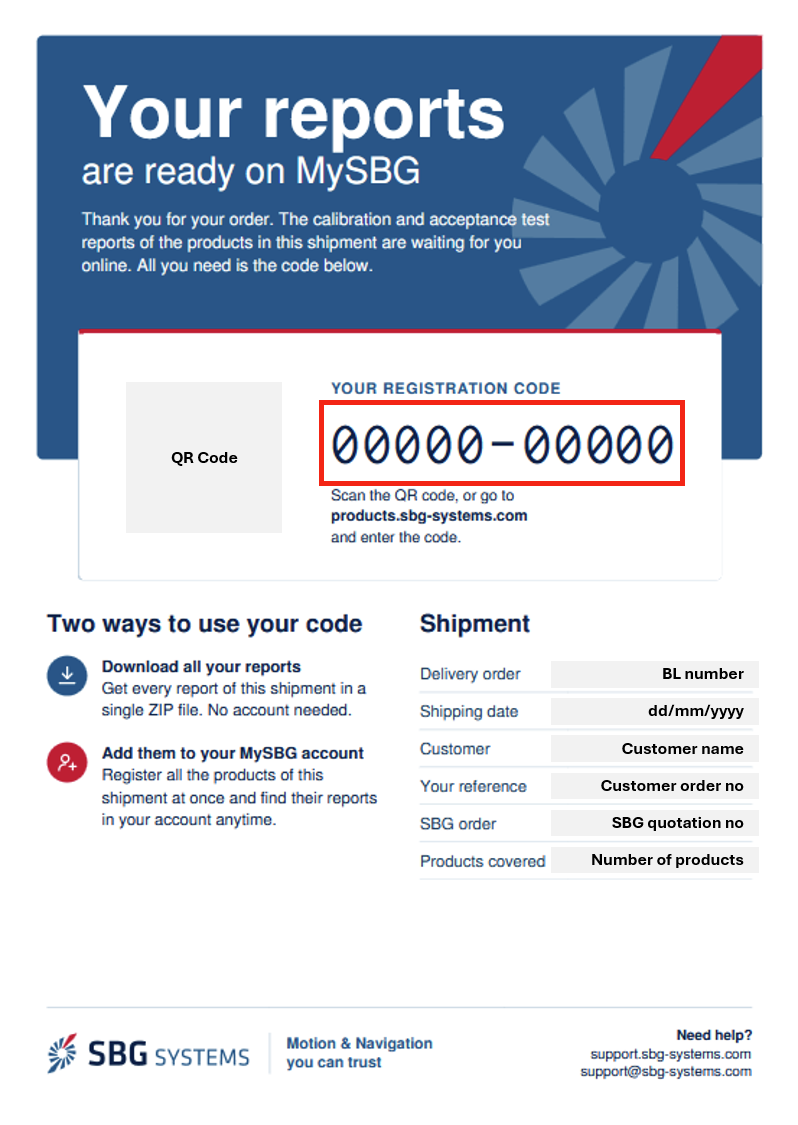
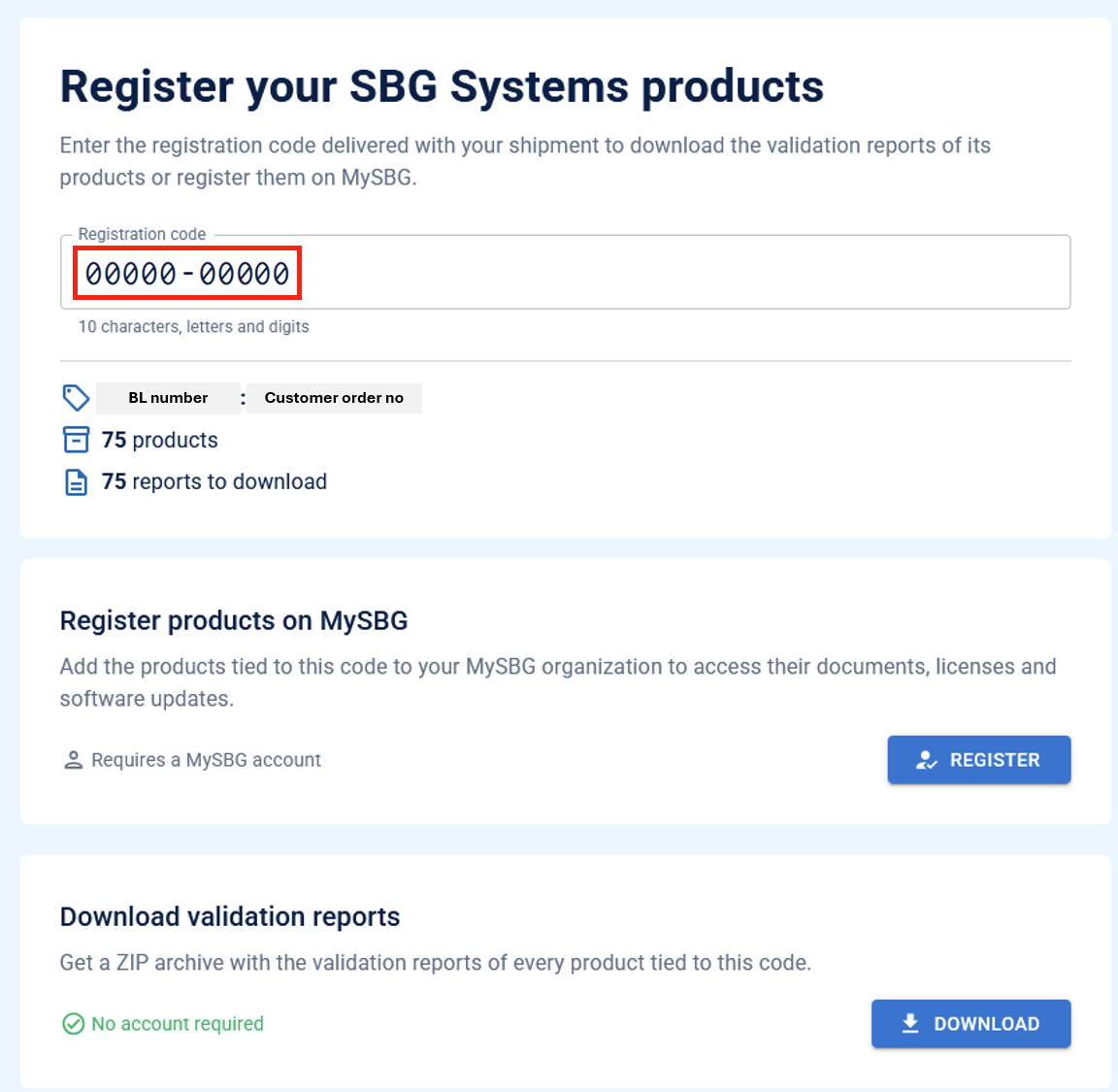
- Visit https://products.sbg-systems.com/ or scan the QR code on the document
- Enter the code provided with the BL (see above)
- You can then either
- Register the products on MySBG (you will be prompted to enter your account details)
- or download a ZIP archive containing all the reports
Add all reports from a shipment to MySBG
MySBG allows you to directly add all the products from a delivery to your account.
With each order you will receive the following document added with the BL delivery slip.
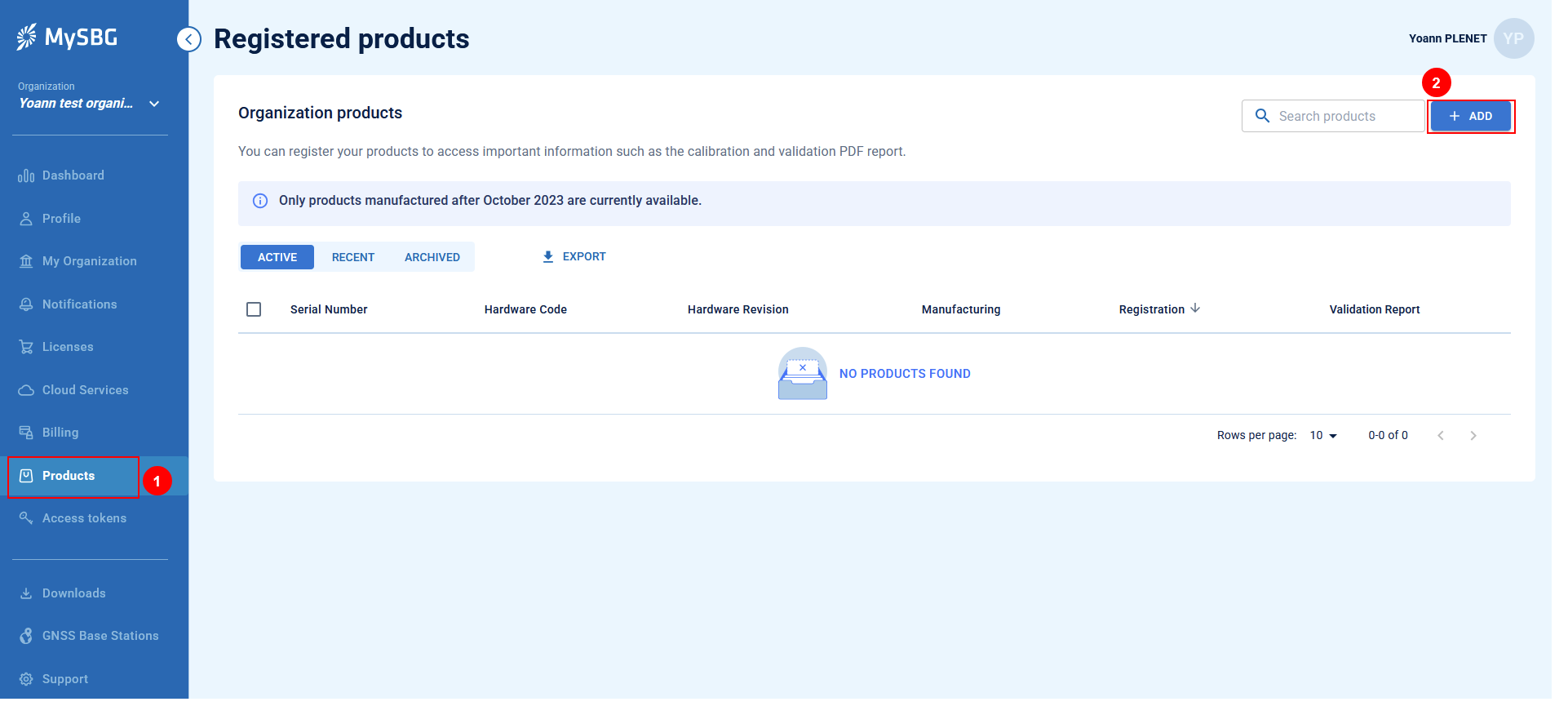
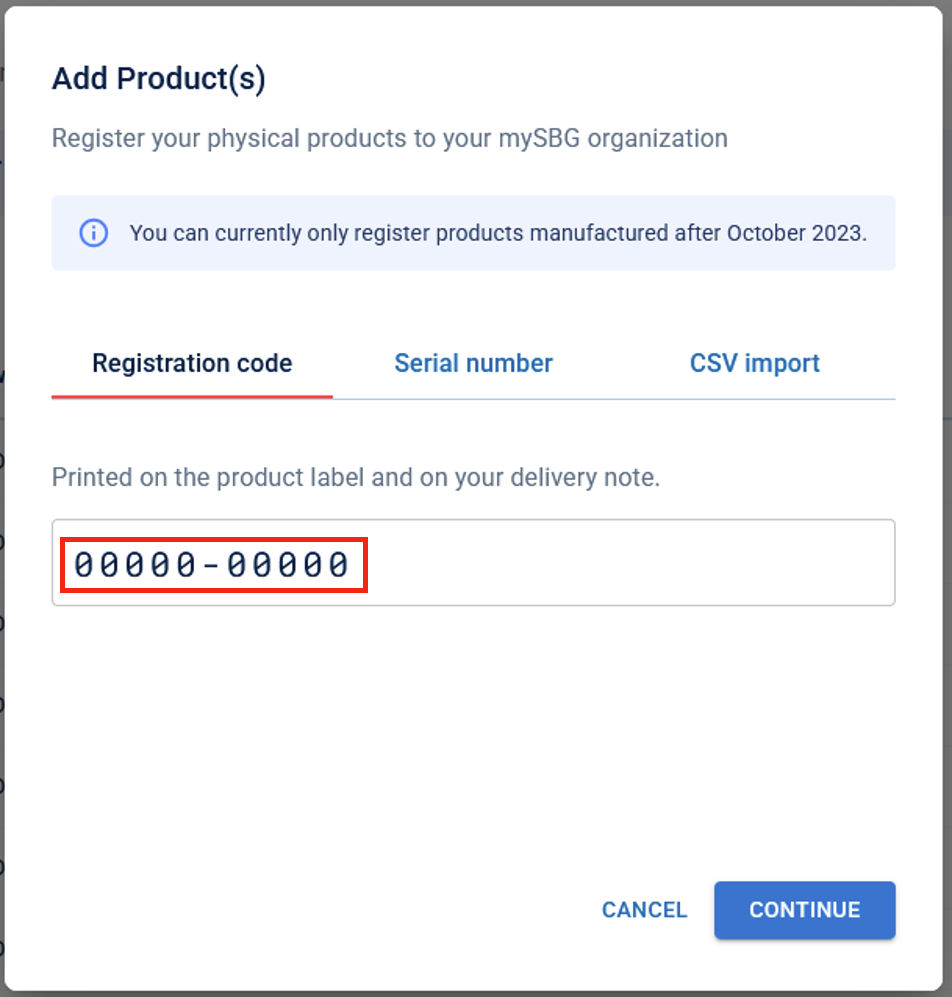
You can then add it directly to your MySBG account with the following procedure:
- Visit https://my.sbg-systems.com/
- Open the "products page"
- Click on "add"
- Enter the registration code as below
- Click on download reports
Download the report of a single sensor
- Visit https://my.sbg-systems.com/
- Open the "products page"
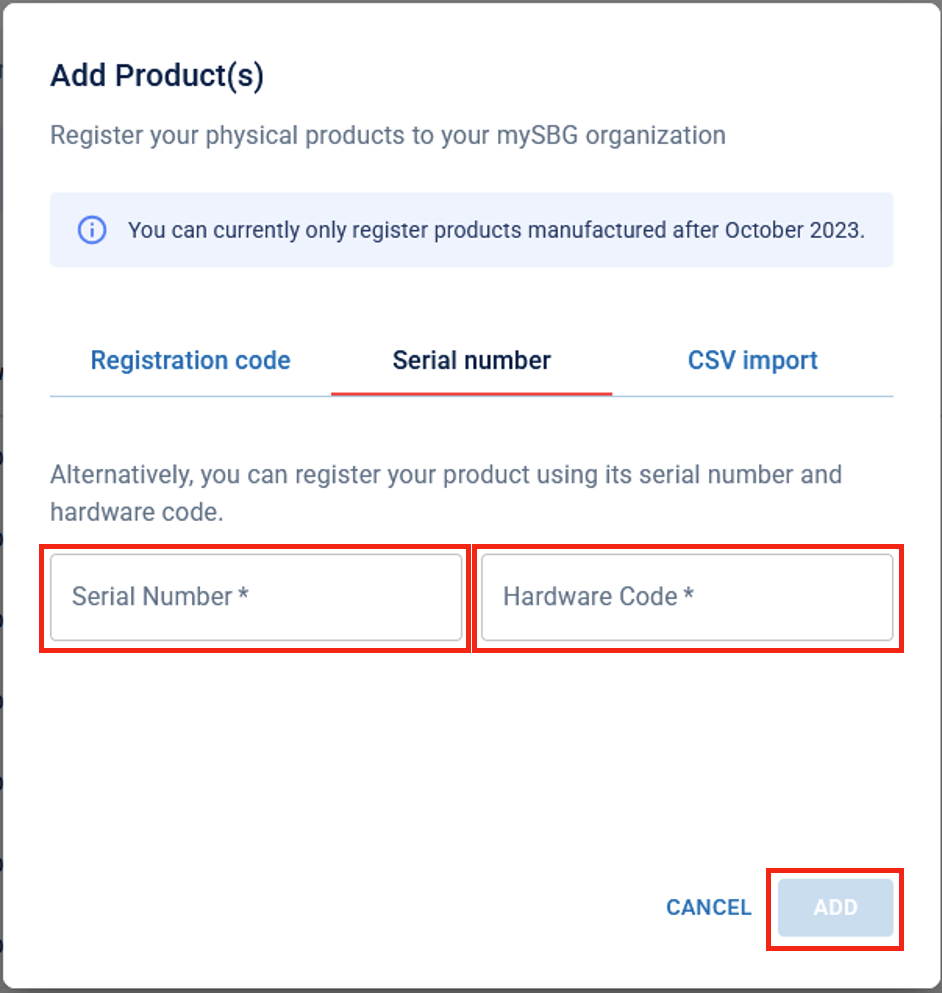
- Click on "add"
- Clock on "serial number"
- Enter the serial number and Hardware code as below. These information can be found directly on your sensor sticker
- A new page for the IMU will then be opened
- You can click on visualize the "validation report"
The screenshots below walks you through the entire process:
Download the multiple sensors at once
The procedure above is convenient to download a few reports at once. However, for customers who want to access more reports this is an arduous task.
However we also have the option to add multiple products at once ; and download multiple reports in a few clicks:
- Visit https://my.sbg-systems.com/
- Open the "products page"
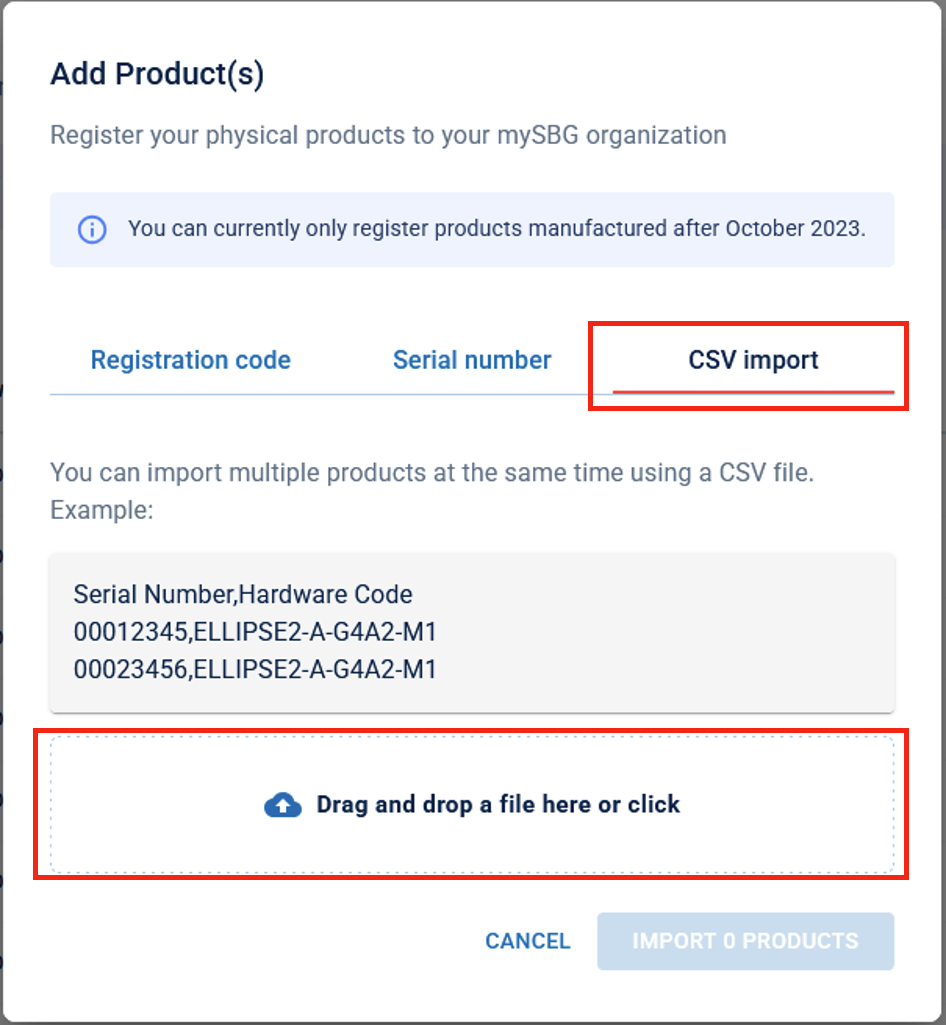
- Create a Comma Separated Value (CSV) file with the identifiers of the products you want to import
- Create a text file using your favorite text editor
- Make sure the first line of the file has the following content: Serial Number,Hardware Code
- On each line of the text file enter the serial number, followed by a comma, followed by the Hardware code
- Save the file
- Click on "add" on the mySbg page of your web browser
- Drag and drop the file or click on open the file and browse to the location
- Click on Import X products
- The list of all products will be displayed
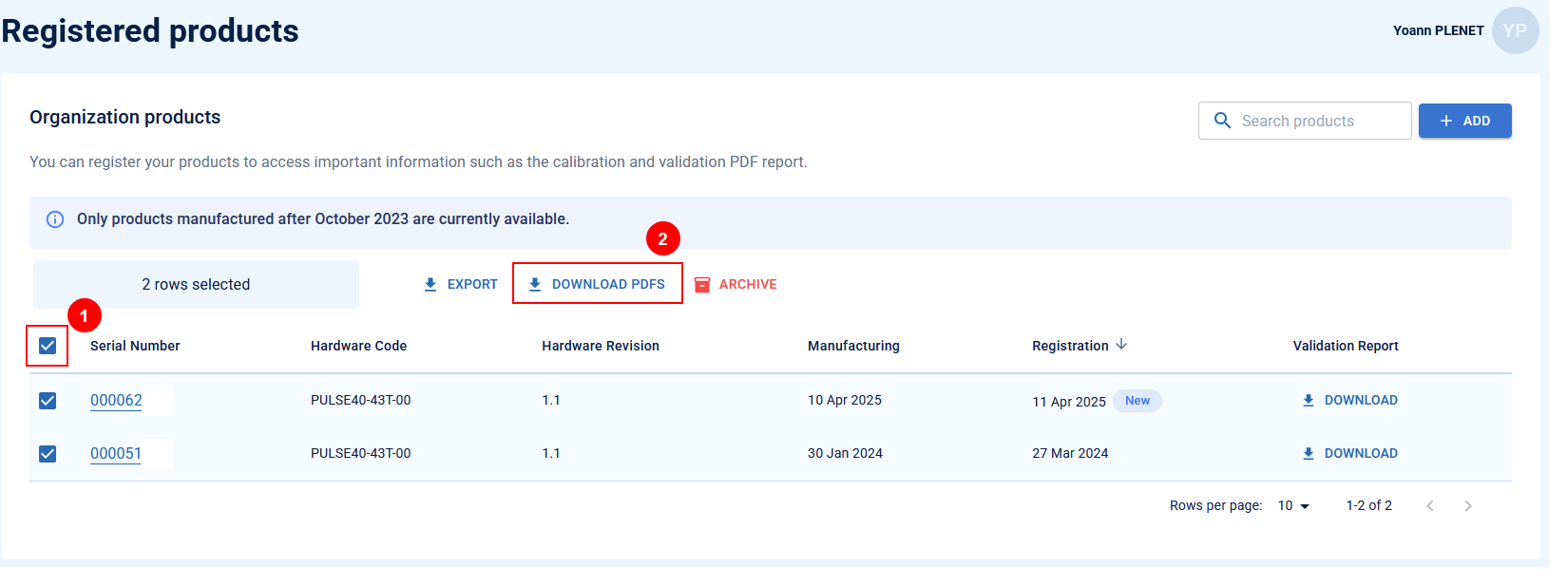
- Click on the checkbox at the top left corner of the list
- Click on download PDF
- The reports will be downloaded by your web browser
The screenshots below walks you through the entire process:
Example of a text file
Serial Number,Hardware Code
000012345,ELLIPSE2-A-G4A2-M1
000023456,ELLIPSE2-A-G4A2-M1