Download PDF
Download page Use Aiding Rejection Modes.
Use Aiding Rejection Modes
Your INS combines several aiding sources, such as GNSS, magnetometer, odometer, DVL, or air data, with the inertial sensors to compute its navigation solution. Each aiding source feeds measurements into the EKF, but not every measurement should always be trusted. Rejection modes let you control how the EKF handles the data coming from each aiding source.
There are three rejection modes available for each aiding input:
Auto rejection
Always accept
Never accept
This article explains what each mode does, in which situations you would use Always accept or Never accept instead of the default Auto rejection, and how to change the rejection mode either permanently through the device settings or temporarily during a live acquisition, without touching your saved configuration.

Qinertia also offers manual rejections, which lets you reject aiding data over a specific time span during post-processing. This is a different feature from the one covered here. This article only covers rejection modes applied in real time, directly on the device. For post-processing rejections, please refer to Qinertia Manual Rejections
The Three Modes
Mode | Behavior |
|---|---|
Auto rejection | Default and recommended mode. The EKF checks the statistical consistency of each measurement (innovation/consistency check) and automatically rejects the ones it considers abnormal, while keeping the good ones. |
Always accept | Forces the EKF to use the measurement no matter what, even if it would normally be flagged as inconsistent by the automatic check. |
Never accept | The aiding source stays connected and configured, but its measurements are never used in the solution, regardless of their quality. |
Concrete Use Cases
When to use Never accept
Never accept is useful whenever you want to keep an aiding source powered and connected, but you don't want its measurements to influence the navigation solution.
- Using a GNSS receiver only for its PPS signal: if you run a dual-GNSS setup where GNSS1 provides an accurate PPS/time reference but GNSS2 is your actual aiding source, you can set GNSS1's position/velocity to Never accept. This way GNSS1 stays connected only to provide timing, without ever contributing position or velocity data to the solution.
- Logging a sensor's raw data without using it: if you want to record a secondary or experimental aiding source for later analysis or comparison, but don't want it to affect your live solution, Never accept lets you keep it enabled and logging while excluding it from the EKF.
- Disabling the magnetometer in a known magnetically disturbed area: if your vehicle operates near large metal structures or strong electromagnetic sources, heading aiding from the magnetometer can degrade your solution. Setting it to Never accept avoids this without physically disconnecting the sensor or changing your full aiding configuration, so it's ready to use again as soon as conditions improve.
When to use Always accept
Always accept is useful when you want to guarantee a measurement is used, even in situations where the EKF's automatic check might otherwise discard it.
- Validating a new aiding integration: when you first wire up a new sensor (odometer, DVL, external GNSS), you can set it to Always accept to confirm the data is actually reaching the EKF and influencing the solution, before trusting Auto rejection to manage it on its own.
- Avoiding false rejections during known aggressive maneuvers: a correctly working sensor can sometimes look statistically inconsistent to the EKF during a real, legitimate high-dynamic maneuver, especially if the lever arm or its uncertainty isn't perfectly known. In this case the automatic check may reject good data by mistake. If you know the maneuver and the sensor are both valid, Always accept prevents the EKF from discarding real measurements.
Persistent Configuration (Device Settings)
The rejection mode for each aiding source can be set permanently from the Device Settings menu, under the Aiding Setting tab. Each aiding block (Position, True Heading, Magnetometer, etc.) has its own rejection mode selector, where you can choose between Auto rejection, Always accept, and Never accept
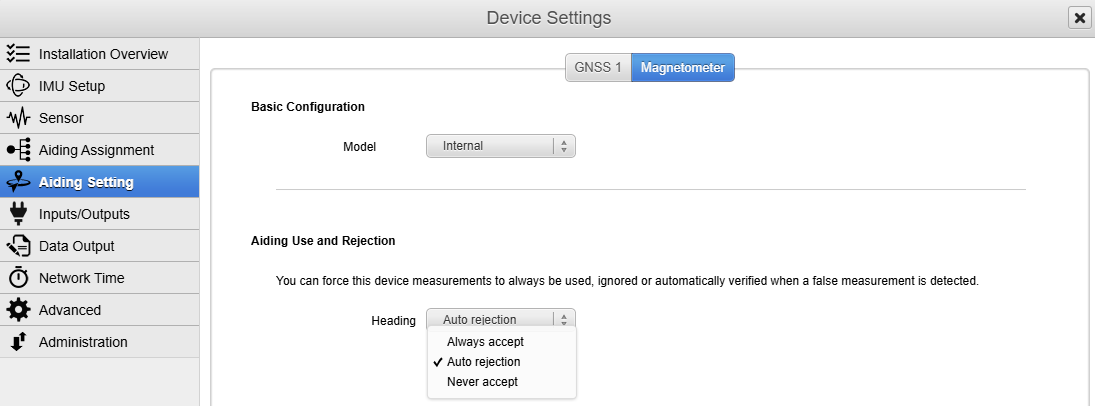
Once saved, this setting is written to the device's FLASH memory and persists across power cycles. This is the mode the INS will use by default every time it starts, until you change it again from Device Settings or override it temporarily, as explained later in this article.
Temporary Changes in Real Time (Actions)
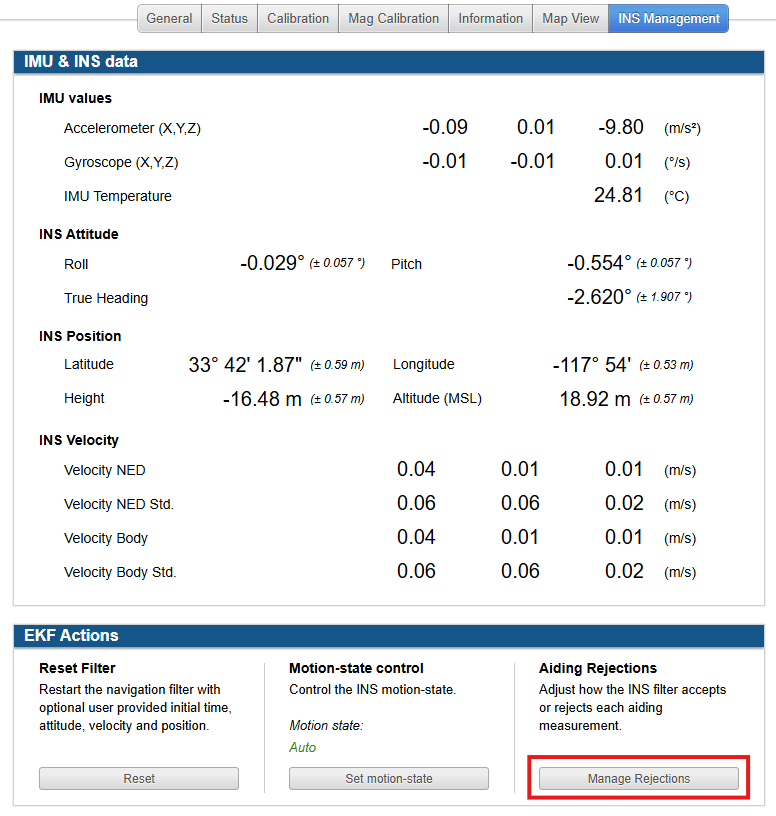
Sometimes you need to change a rejection mode while the device is running, without touching your saved configuration. This lets you test or adjust a mode on the fly, with no reboot involved and no risk to your persistent settings.
Using the web interface
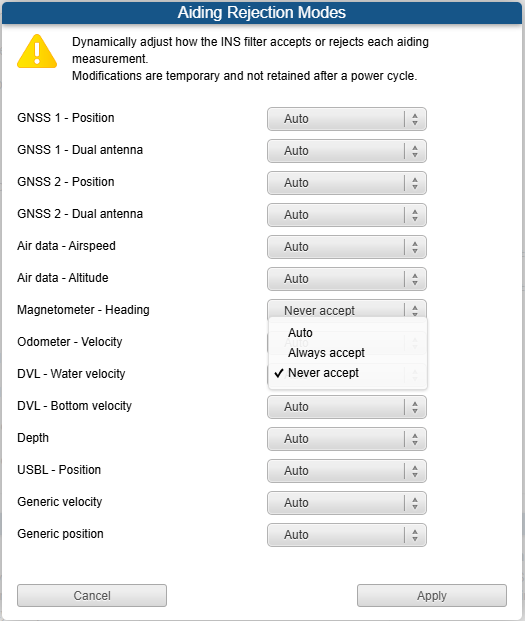
The web interface has a dedicated "Aiding Rejection Modes" dialog, where you can change the mode of every available aiding source in one place: GNSS1/GNSS2 Position, GNSS1/GNSS2 Dual antenna, Air data Airspeed/Altitude, Magnetometer Heading, Odometer Velocity, DVL Water/Bottom velocity, Depth, USBL Position, Generic velocity, and Generic position (more aiding sources can be added in the future).
Using the REST API
You can also change the rejection mode on the fly using the Rest API by using a few commands. The sbgInsRestApi documentation will have all the commands available. The syntax below is for the Windows command line interface, the syntax might change when using different operating systems or command line interfaces.
Each aiding source also has its own GET/POST endpoint, following the pattern /<aiding>/rejections/<type> with a simple payload: "auto", "always", or "never".
curl -X POST http://<IPaddress>/api/v1/<aiding>/rejections/<type> -d \"never\"
You will get the following response which means the rejection mode has been aplied.
{"title":"request successful"}

These changes are temporary. They are not saved to the device and are lost at the next power cycle. Once the device reboots, it goes back to the rejection mode configured in the persistent settings.
Here is the full list of rejection mode endpoints for reference:
| Aiding | Type | REST Endpoint |
|---|---|---|
| GNSS 1 - Position and Velocity | Position | gnss1/rejections/position |
| GNSS 1 - Dual antenna | Dual antenna | gnss1/rejections/dualAntenna |
| GNSS 2 - Position and Velocity | Position | gnss2/rejections/position |
| GNSS 2 - Dual antenna | Dual antenna | gnss2/rejections/dualAntenna |
| Air data - Airspeed | Airspeed | airData/rejections/airspeed |
| Air data - Altitude | Altitude | airData/rejections/altitude |
| Magnetometer - Heading | Heading | magnetometer/rejections/heading |
| Odometer - Velocity | Velocity | odometer/rejections/velocity |
| DVL - Water velocity | Water velocity | dvl/rejections/waterVel |
| DVL - Bottom velocity | Bottom velocity | dvl/rejections/bottomVel |
| Depth | Depth | depth/rejections/depth |
| USBL - Position | Position | usbl/rejections/position |
| Generic velocity | Velocity | vel1/rejections/velocity |
| Generic position | Position | pos1/rejections/position |
Best practices
Always use Auto rejection unless you have a specific, documented reason to use another mode. Auto rejection is designed to handle most situations correctly on its own, and it should remain your default choice.
Be careful with Always accept. If misused, it can let a genuinely bad measurement into the solution, since you are removing the EKF's own safety check on that source.
Be just as careful with Never accept. If you forget a source was set to Never accept after a configuration change, you can silently lose an aiding input without realizing it, which may degrade your solution.