This section will describe sbgCenter General, Export and Devices options and also explain the time bar & mouse/cursor interaction.
General options
This tab shows all active plugins, and allows to configure the sbgCenter refresh rate.
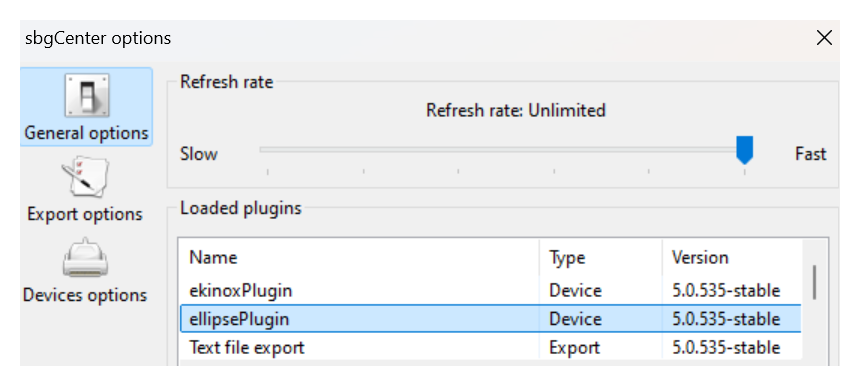
Optimizing battery
You may reduce the refresh rate to save laptop battery in case of emergency!
Export options
This tab is used to create your own custom ASCII export template is thoroughly described in the page Convert sbgECom data to text

Devices options
This tab is used to configure which baud rate should be scanned by the sbgCenter.
If you changed the Ellipse baud rate, make sure the sbgCenter is scanning the correct one to still be able to detect the Ellipse.
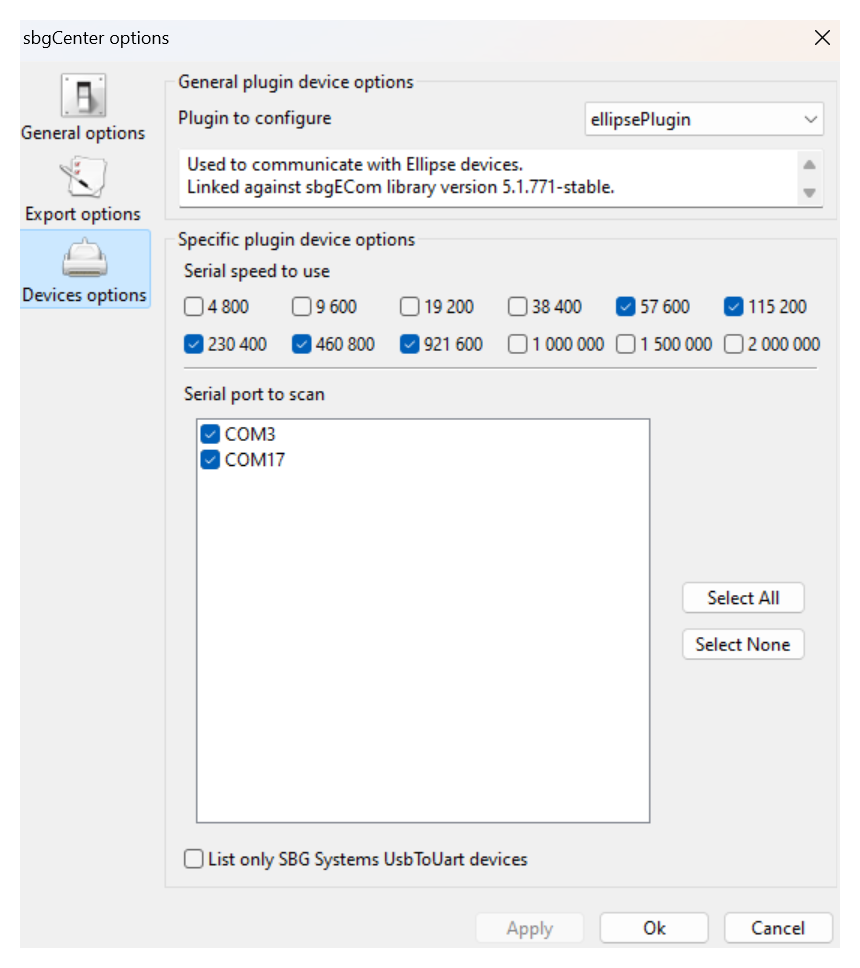
Connecting to any serial port
Make sure to un-check the box at the bottom if you don't use the SBG Systems provided USB cable.
Import sbgECom binary logs & Export ascii custom files
The process of importing binary logs and creating custom ASCII export template is thoroughly described in the page Convert sbgECom data to text
When the import progress bar disappears you should see the time bar at the bottom

move the cursor above the greyed area , then mouse buttons (MB) or mouse wheel (MW) will have several actions
- MB1 (left button) will move the time cursor (yellow)
- MB2 (right button)+hold will pan the time bar in the actual range
- MW will zoom in/zoom out on the time cursor
You would first un-zoom to full time scale before displaying data and status

then use the various icon buttons to add a graph, or display 2D position , GNSS information, device status as explained on the page Display
Record Data using sbgCenter
press the recording button

After clicking again to stop the recording, you can go to File → Save recording Ctrl+S, to create a file.sbgz record. This file will also include the configuration of the Ellipse.
The sbgCenter should not be used to log survey data since the data is not logged on the computer before selecting File → Save recording, only short files for troubleshooting should be logged with the sbgCenter.

