The purpose of this document is to guide on how to configure RTK by sending RTCM corrections to an Ellipse using sbgDataLogger.
In case you need another way to send corrections to the Ellipse via NTRIP without a computer, you can check our Receive RTK corrections via NTRIP using ArduSimple article.
First of all, make sure you enable the port you want to use for RTK corrections in Configuration, Aiding Assignment, RTCM.
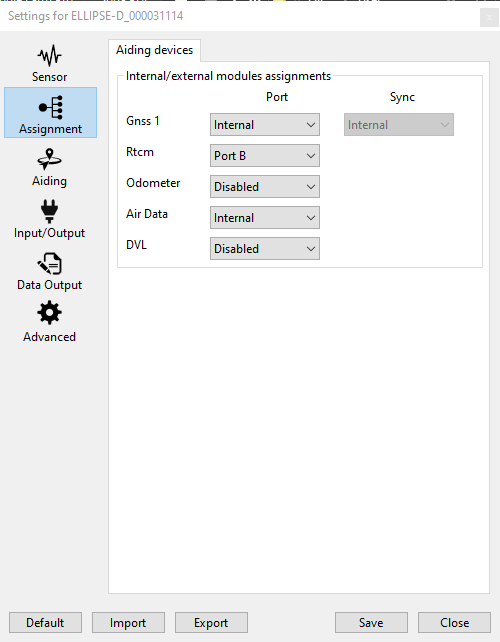
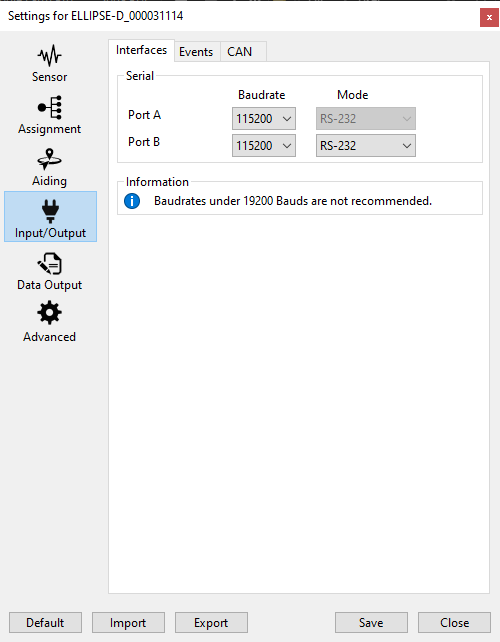
You will need to configure this selected port for RS232 communication with a baud rate that matches the baud rate of equipment sending the RTK corrections to the Ellipse.
The right side of sbgDataLogger tool is dedicated to Differential Corrections.
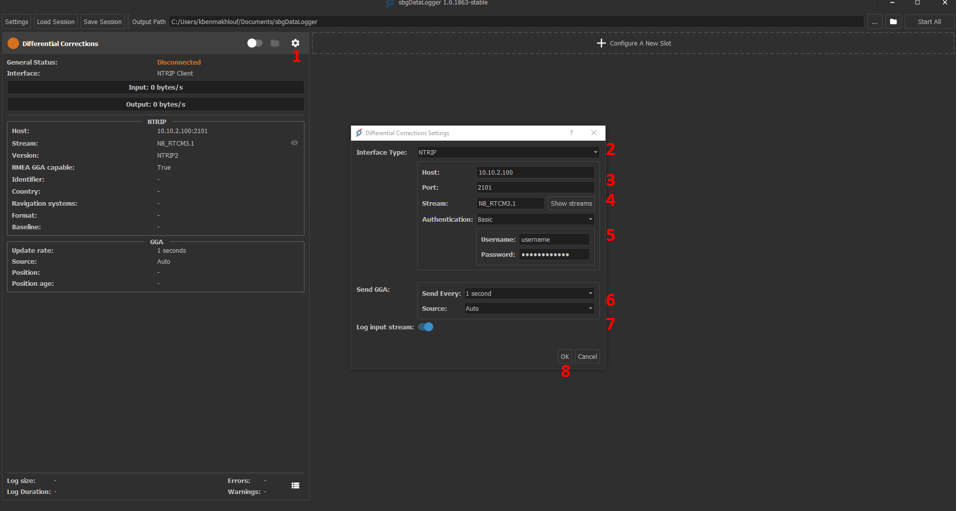
To configure the NTRIP client, please follow the steps below:
- Press the button to open the configuration window.
- Select the interface type as NTRIP.
- Enter the host name and port.
- Press "Show streams" to display and select the mountpoint.
- Choose "Basic" if your NTRIP server requires an authentification.
- Select the frequency and the source of the GGA information, if your NTRIP server requires it.
- Toggle it to log the RTCM corrections for post-processing if desired.
- Press "OK".
To create a new slot, please follow the steps below:
- Click on "configure a new slot" and select the unit's baud rate and port.
- Make sure you toggle "Forward Corrections" to enable the RTCM corrections' input.
- Toggle "Log Input Stream" to log the data for post processing if needed.
- Press "OK".
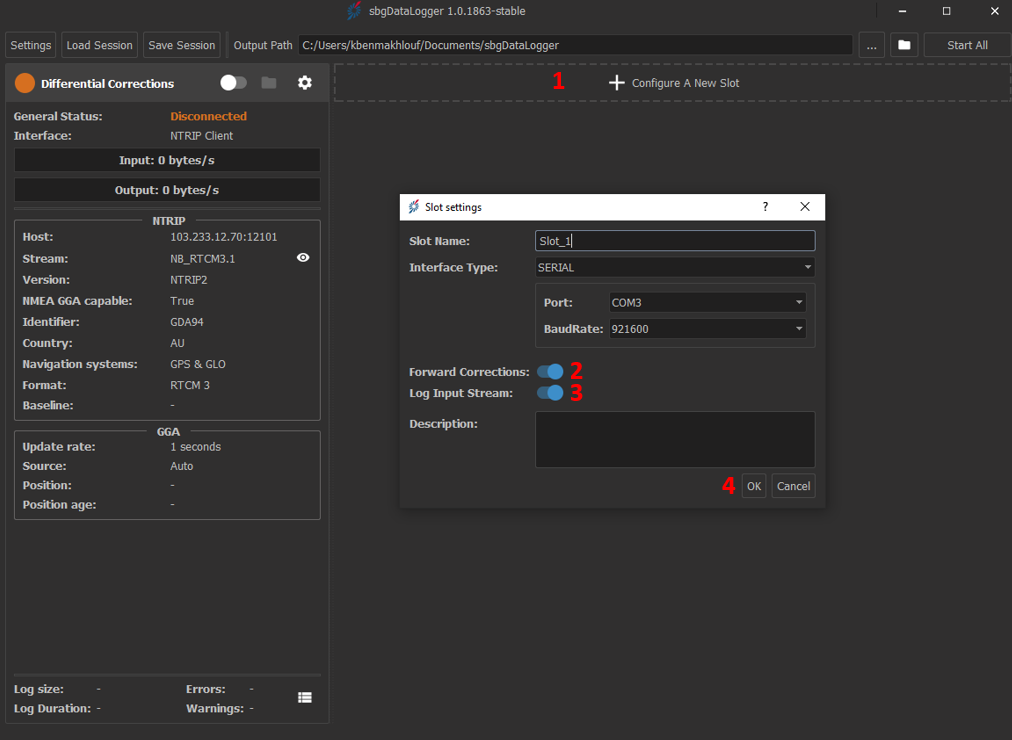
For more information on how to create a new slot in sbgDataLogger, please refer to our sbgDataLogger page.
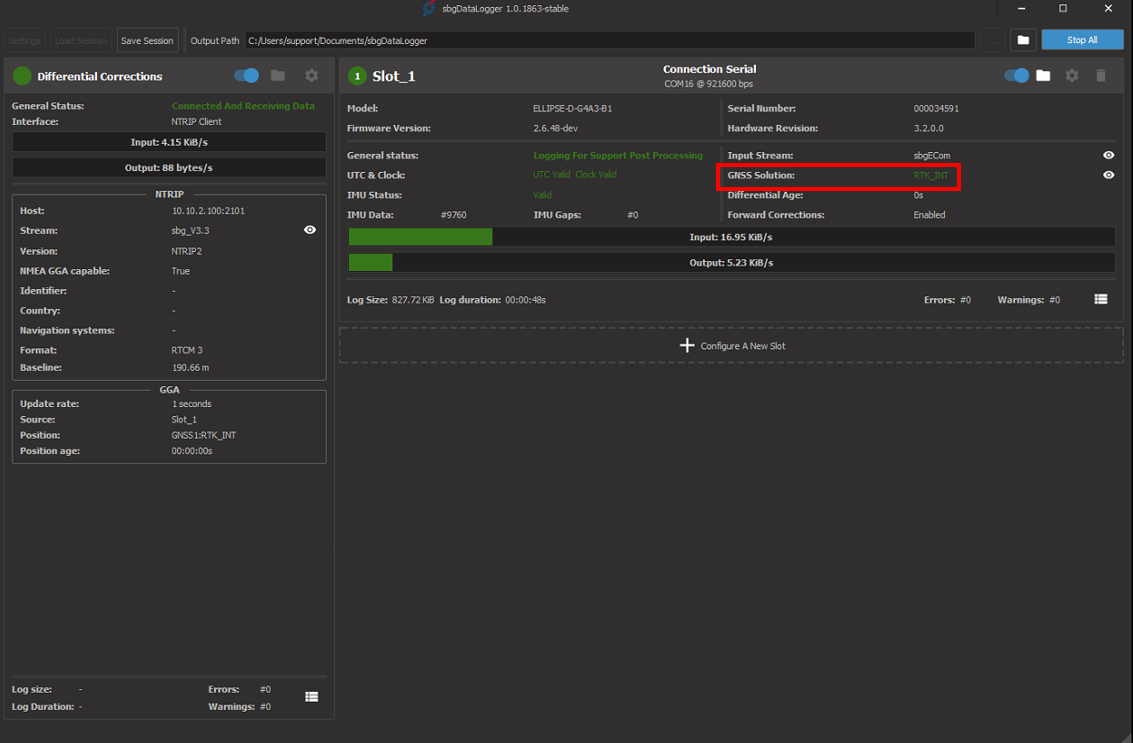
Once all set up, you should turn on the toggles as shown below:
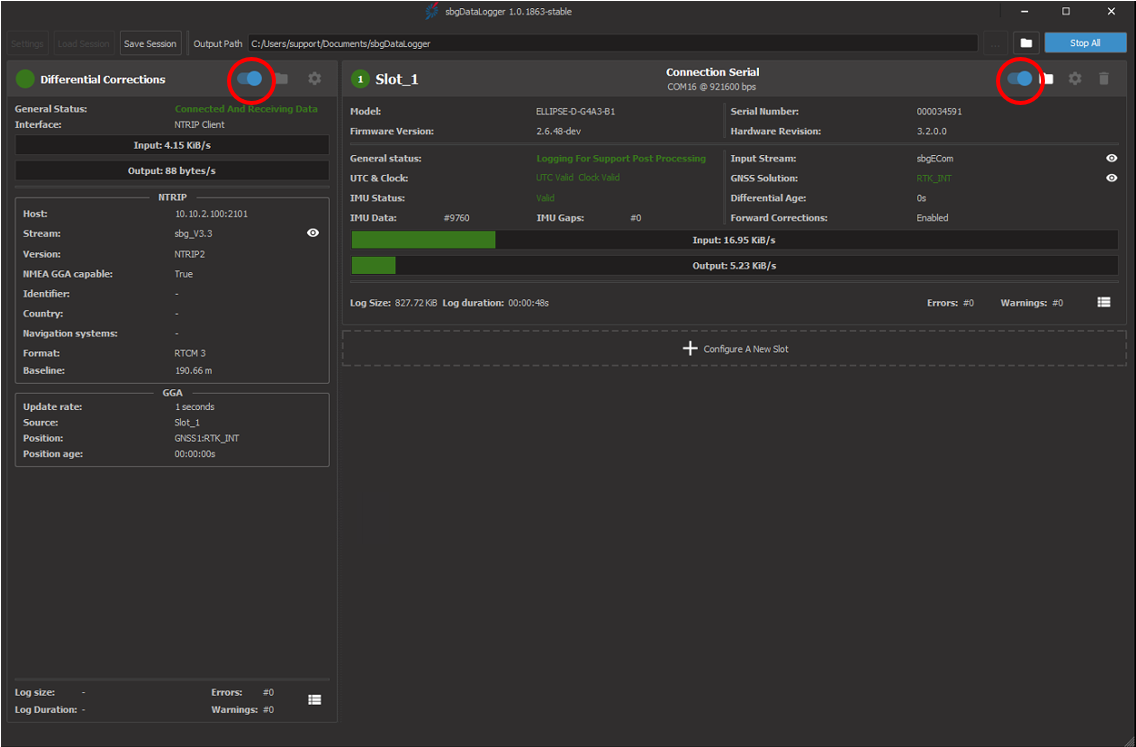
Note that the GNSS solution now is RTK_INT, which means that you achieve RTK positioning accuracy.