Download PDF
Download page Ellipse Configuration.
Ellipse Configuration
This guide walks you through the essential tabs in the configuration menu.
Sensor
Motion Profile
The Motion Profiles are meant to configure the algorithm for a specific application. The default motion profile is a general purpose that will work in any situation, but it is better to select one relevant to your application for optimal performance.
| You can select :
|
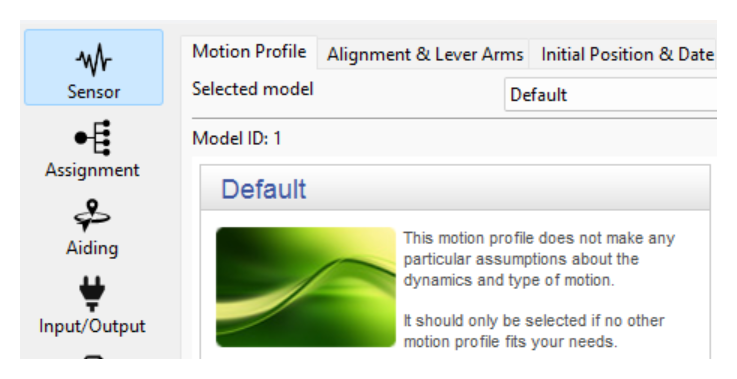
More details on Sensor configuration chapter Motion profile selection.
Alignment & Lever Arms
Here we configure 3 elements:
- The Ellipse alignment: In case the INS is not mounted in the default orientation, it is mandatory to define the orientation here.
- The Vehicle Center of Rotation: From the Ellipse to the center of rotation in the realigned frame (= vehicle reference frame)
- The Output Monitoring Point: Optional, used to output data on a specific point.
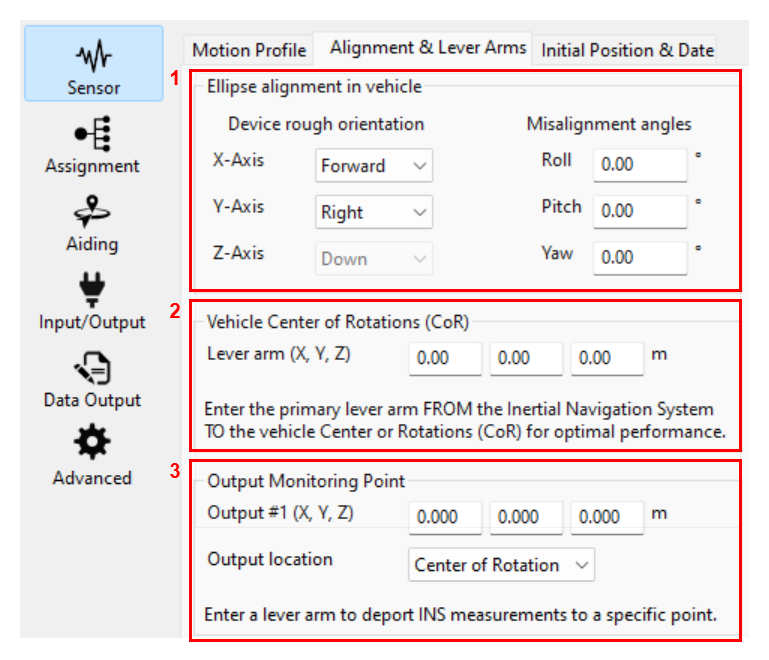
More details on Sensor configuration chapter Mechanical setup
Initial Position & Date
Configuring the initial position and date allows to automatically compensate the magnetic declination even before receiving a fix from the GNSS (if magnetometers are used). Alternatively, the magnetic declination can be manually entered.
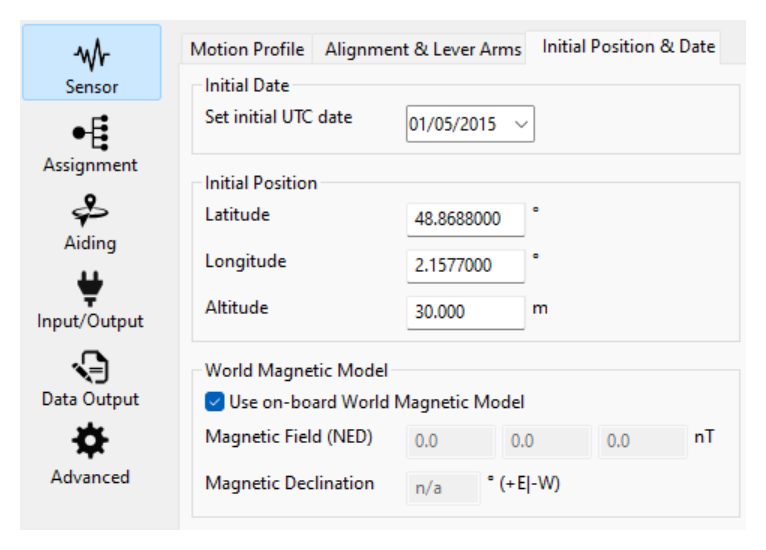
More details on Sensor configuration chapter Magnetometer-related parameters
Assignment of Aiding devices
This is where we configure different aiding sources. Typically an internal or external GNSS Receiver, but also specific aiding sensors depending on the application (Odometer for land, Air Data for airborne, DVL for Marine).

Aiding Configurations
For each aiding that has been enabled, a tab will be available (except for RTCM).
- Internal GNSS Configuration or External GNSS integration
- Odometer integration
- Magnetometers : If you want to use the Magnetometer for heading, the Magnetic Calibration page details how to perform the mandatory calibration process for different type of applications. If you plan on using an external magnetometer, please check the External Magnetometer Integration guide.
- AirData
- DVL integration
Input / Output
Interfaces
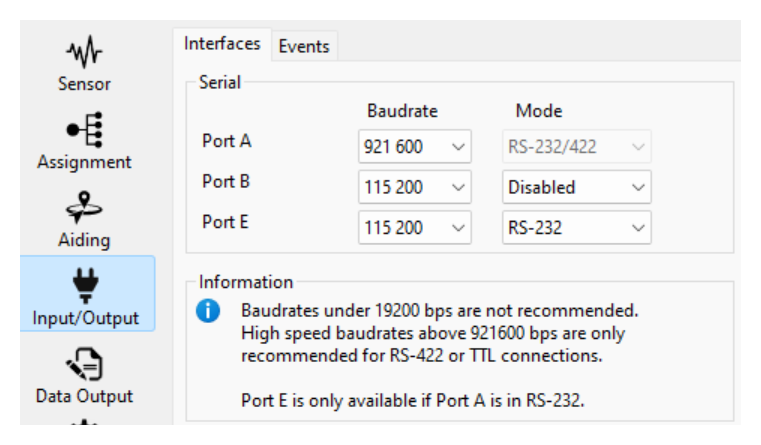
Define the baud rate (from 4800 to 2000000 bps) and mode of the serial interfaces of the Ellipse.
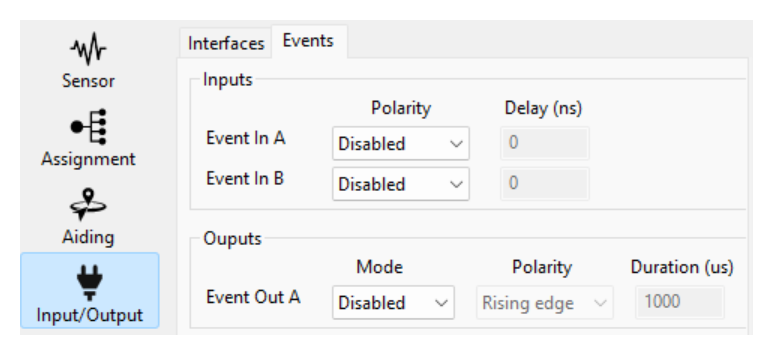
Events
Configuration of the Input and Output Synchronization pins.
Data Output
Here we define what messages are being output from the Ellipse. The categories are:
- sbgECom: proprietary messages in binary format from SBG Systems detailed in the sbgEcom Library
- standard NMEA: fused IMU+GNSS messages in ASCII format
- GNSS NMEA: GNSS-only messages in ASCII format
- Proprietary NMEA: Specific SBG messages in ASCII format
- Third Party Logs: Various specific messages that can be binary or ASCII
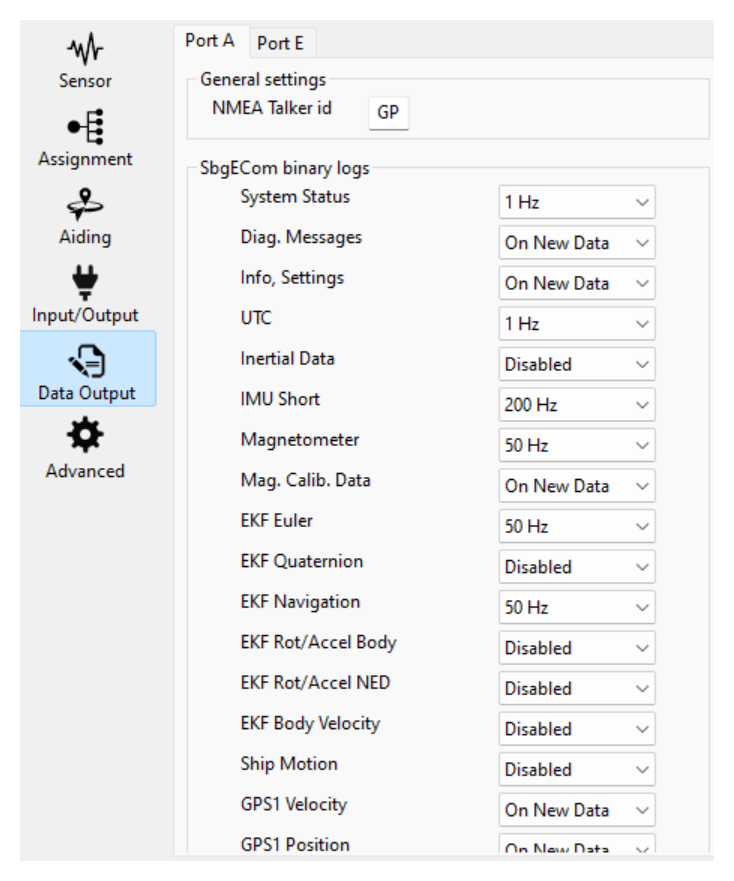
More details on Data logging configuration

Be selective
It is generally better to only use one type of data (for instance only sbgECom, or only ASCII) per output port.
Always check the Device Status - Interfaces to be sure your port is not saturated after changing the content and rate of Data-Output !!
Advanced
The time reference used to synchronize the internal clock is typically taken on GPS 1 source. This is the recommended default configuration, but it is possible to use an external clock instead at 1PPS.
The validity thresholds are used to defined when the quality indicators status are ok. This will not have any effect on the algorithm computation, but may have an effect on the fused data output.
The NMEA options can be used to limit the size of NMEA messages being output and force a timestamps.
The NMEA options can be used to limit the size of NMEA messages being output and force a timestamps.

You can also deselect some constellation if needed

Save/Close - Import/Export/Default Settings
At the bottom of the configuration windows there are 5 buttons

- Default will reset the unit to default settings (beware portA will be set at 115200 baud rate)
- Import will open a configuration.json file (ascii) or a configuration.bin if the Ellipse is running an older legacy firmware (where version is < 3.0)
- Export will generate an ascii Ellipse-settings.json file. It is advised to keep a copy of this file and create a configuration report that list all settings, including the firmware version at the time of creation
- Save & Close are self explanatory.
If you record 30s of data using sbgCenter and save that record, this will create a .sbgz file. This file can be re-open in sbgCenter it will show all the current settings at recording time.

firmware version & setting files
It is not recommended to import setting files form another firmware version. When you are upgrading the firmware of an Ellipse, check that all the settings are OK after upgrade, then Export settings to a file and add the firmware version into the filename. Update the configuration report.